Support
-
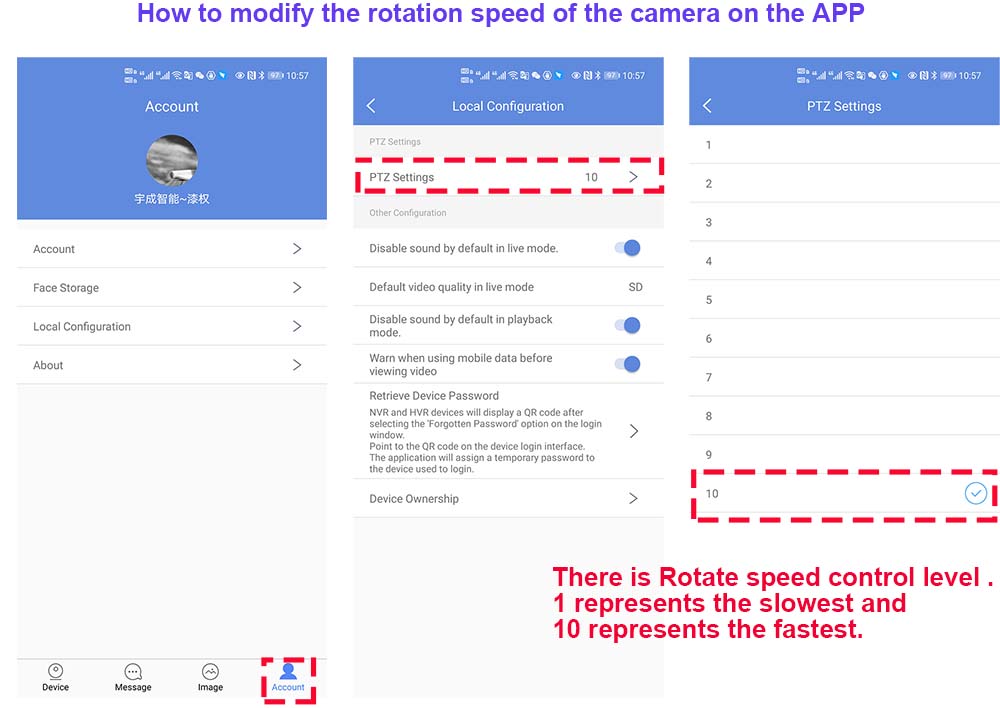
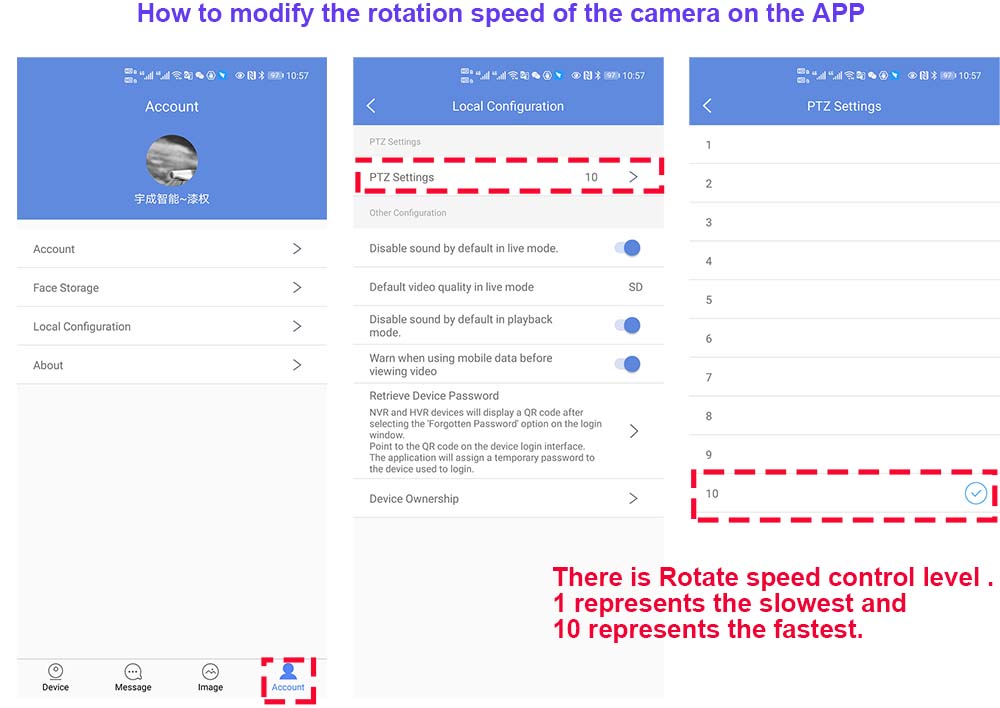
How to modify the rotation speed on the APP?
-
Software Name:
How to modify the rotation speed on the APP?
-
Software Size:
-
Software Description:
-
Download:
-
-
P03Z35LW4T20 Russia Manual Download
-
Software Name:
P03Z35LW4T20 Russia Manual Download
-
Software Size:
-
Software Description:
-
Download:
-
-
How to setting idle action function
-
Software Name:
How to setting idle action function
-
Software Size:
-
Software Description:
What is the idle action function;
Idle action function refers to the function that the camera automatically performs a certain action when it is idle.For example, in the case of unmanned control, the camera will automatically enter the cruise function after waiting for
a period of time. Idle action can perform many functions, such as: preset position cruise, 360°horizontal scan, left and right limit scan,
fixed-point tracking, cruise tracking and so on.
How to enable automatic cruise when idle:1,Run the mobile APP and enter the PTZ preset position setting Menu
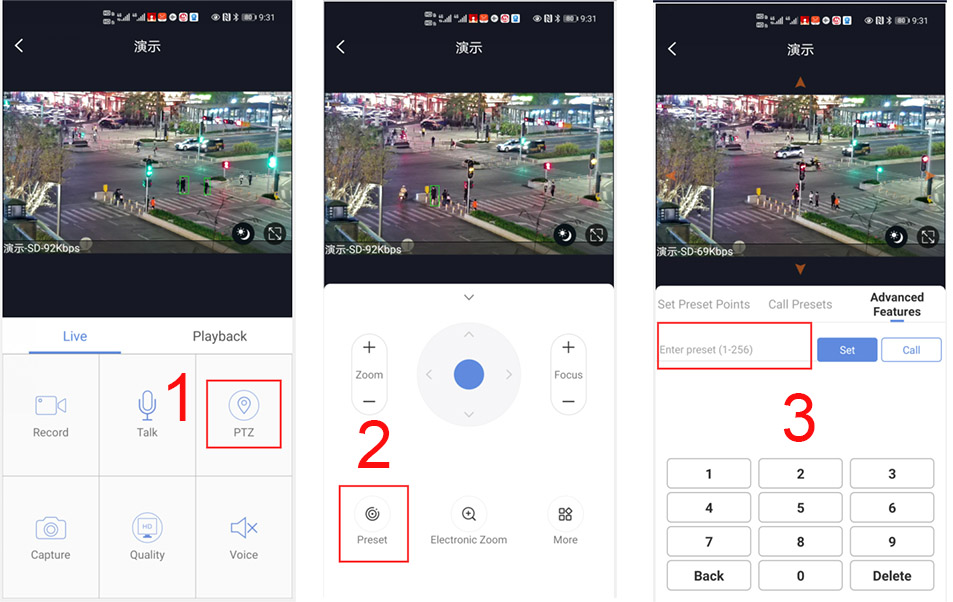
How to set some presets postion:
Before turning on cruise, you need to set the camera's cruise point in advance. maximum 32 preset points can be set. These cruise points are the few locations you want to monitor. The camera will cruise back and forth between these locations . Turn on cruise function,The camera will cycle moving in these preset cruise points.
Setting 1,2,3,4….max 32 preset position,
Then call 101th preset camera will auto turn on cruise tracking2, How to turn on/ off idle action function
130+Call for Turn on idle action function
130+Set for Turn off idle action function
3,How to setting idle action function:
131+Set + N+Call ,N=Function preset,if N=101 ,means to perform cruise function
131+set+101+call4,How to setting the time when the idle action starts
132+set+ N+Set (N=1-30; N represents Idle time,default is 5 minutes)
If you want the camera to perform the idle action function after being idle for 2 minutes, the setting method is as follows:
132+set+2+set -
Download:
-
-
-
Software Name:
How to Reset PTZ IP Camera
-
Software Size:
-
Software Description:
Restore the camera’s factory settings in 2 parts
1. Restore the camera LINUX system: There is a reset button on the camera tail line. When the camera is working normally, press and hold the reset button for 15 seconds and release it, and the camera will automatically restore to factory settings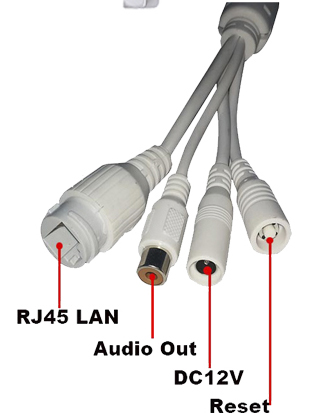
2. Restore the camera PTZ control part: Run the mobile APP or computer software, find the PTZ control menu on the software, and enter: 106+call+64+call on the preset keyboard. After the execution is completed, the camera will start the automatic reset operation. Please be patient, it may take 30 seconds (the camera will start the self-test process)
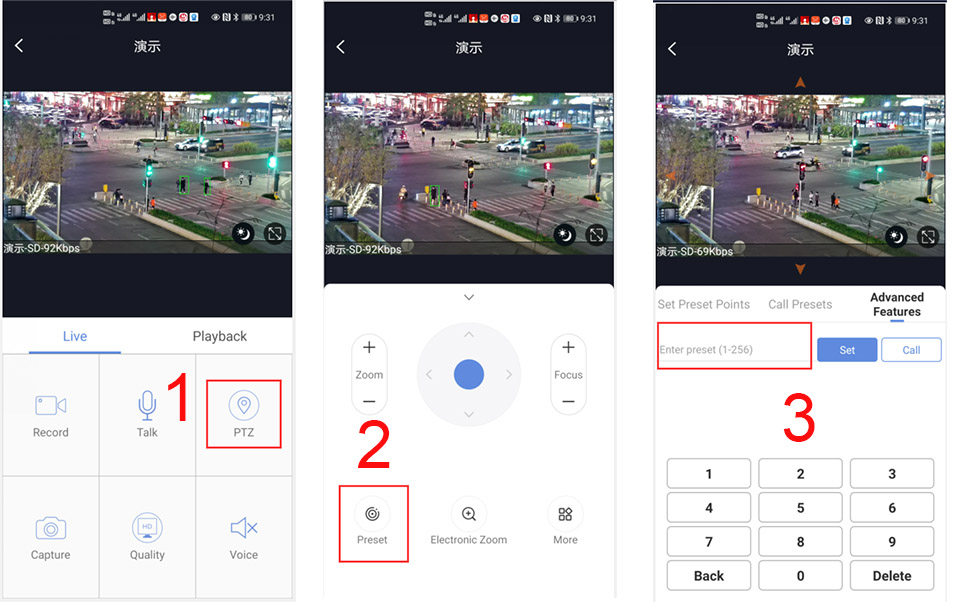
-
Download:
-
-
P6SLite 2LAN 4G ZOOM IP CAMERA Manual.pdf
-
Software Name:
P6SLite 2LAN 4G ZOOM IP CAMERA Manual.pdf
-
Software Size:
-
Software Description:
-
Download:
-
-
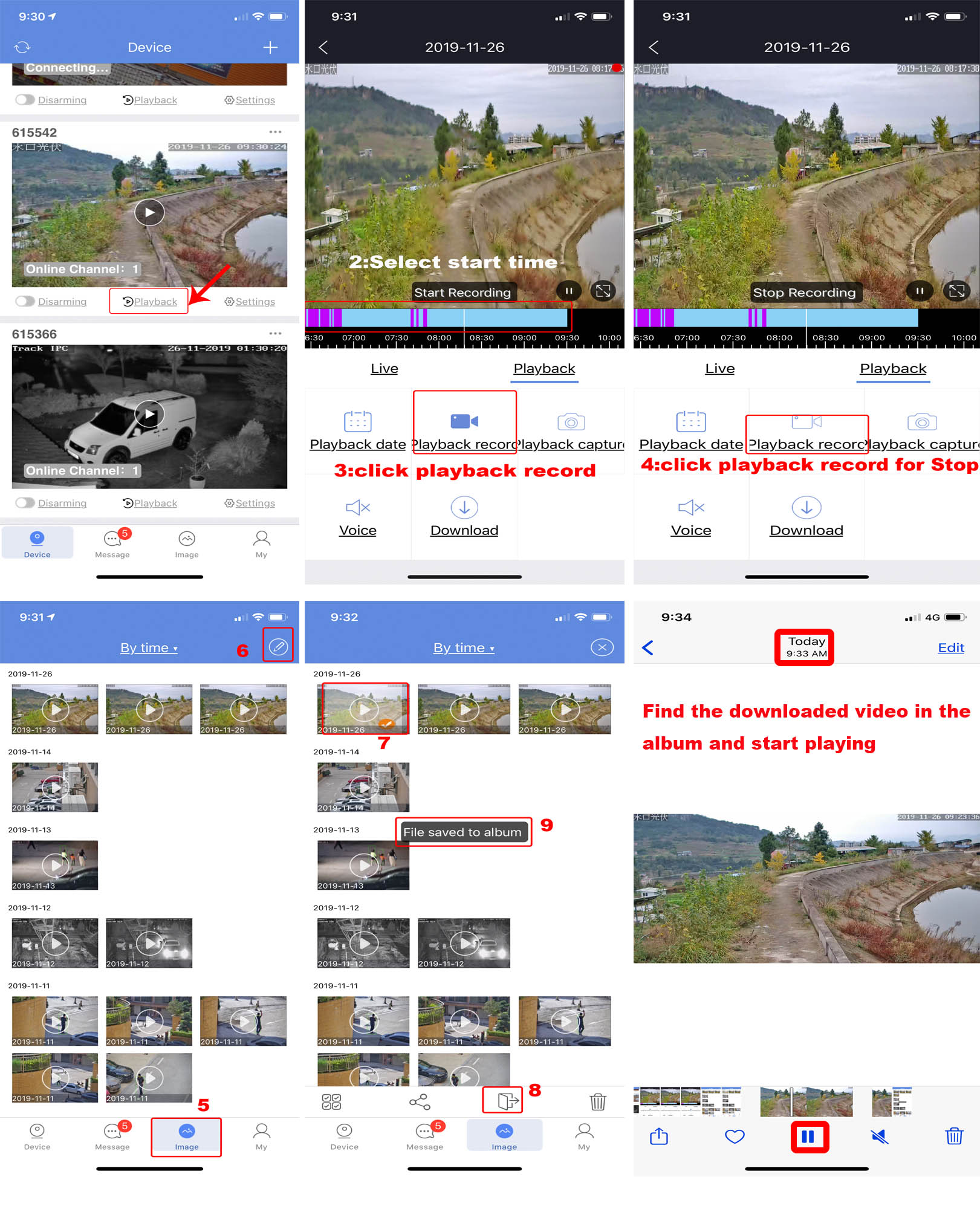
How to download Record files to phone album in P6S
-
Software Name:
How to download Record files to phone album in P6S
-
Software Size:
-
Software Description:
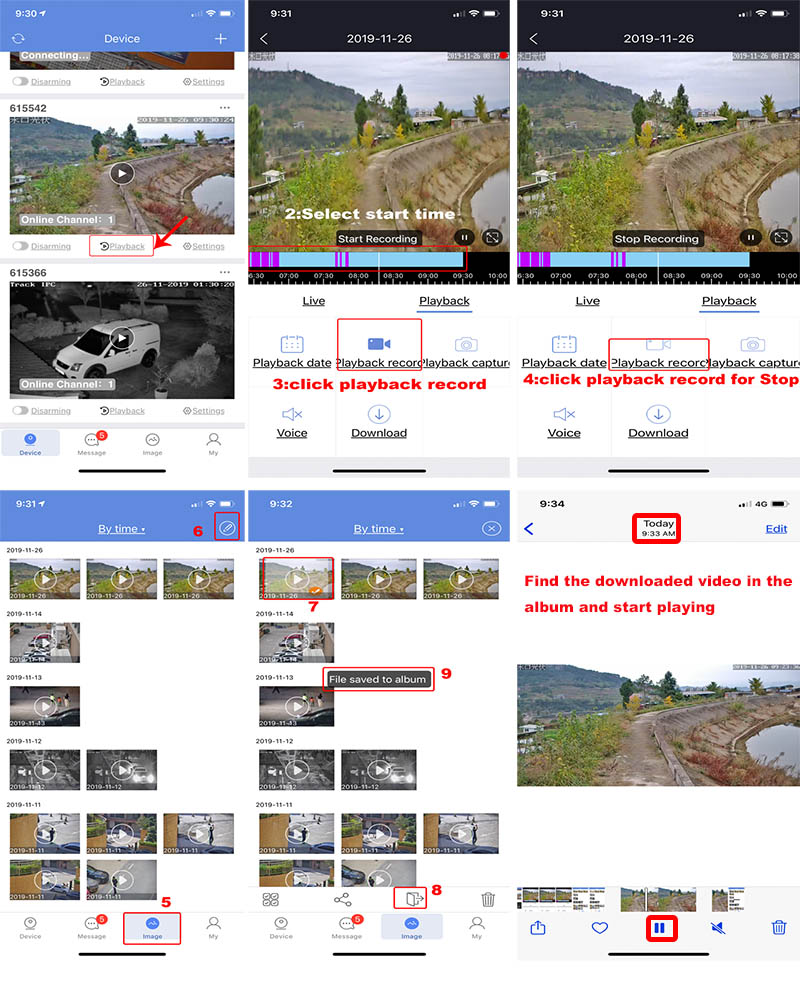
-
Download:
-
-
-
Software Name:
P03Z35LW4T20 Manual download
-
Software Size:
-
Software Description:
P03Z35LW4T20 Tracking PTZ ip camera Manual download
-
Download:
-
-
Full-featured and detailed 360-degree selecti
-
Software Name:
Full-featured and detailed 360-degree selecti
-
Software Size:
-
Software Description:
Smart speed dome programming instruction list manual
-
Download:
-
-
P6SLite Camera IE Browser manual
-
Software Name:
P6SLite Camera IE Browser manual
-
Software Size:
-
Software Description:
-
Download:
-
-
-
Software Name:
How to set sound alarm output
-
Software Size:
-
Software Description:
How to set sound alarm output
Prerequisite: The camera needs to support the speaker output and connect a speaker.
1,Open the P6SLite APP and enter the "settings" interface as shown:
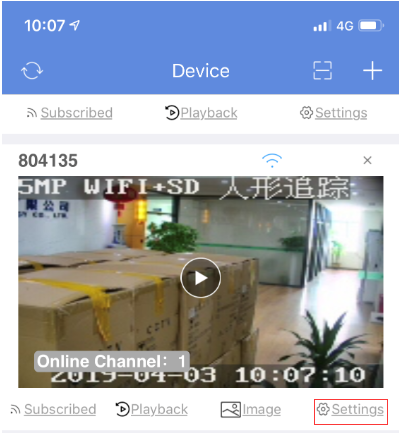
Click "setting" find out "Alarm setting"
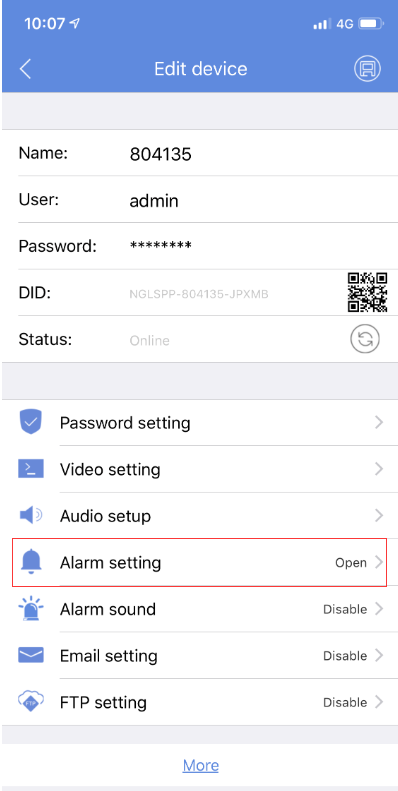
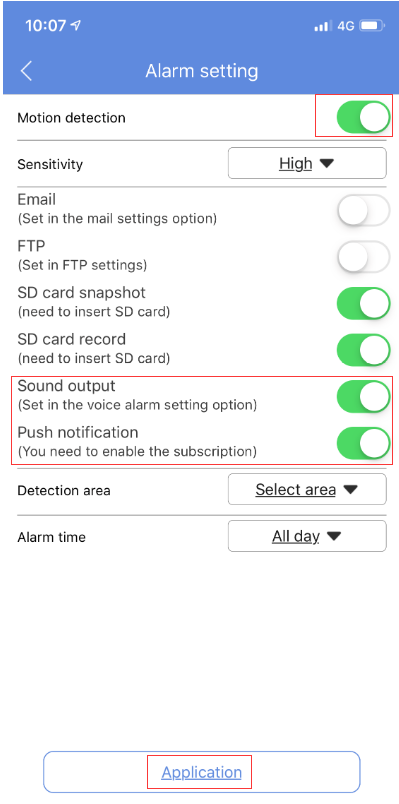
Turn on Motion detection ,Sound output,Push notification,and check Application, Audio output setting after completion of alarm trigger
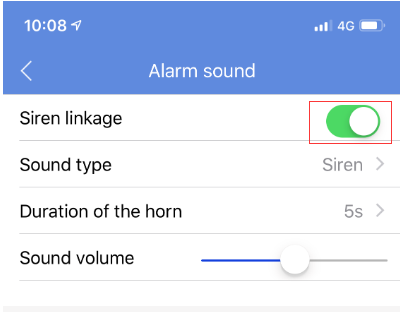
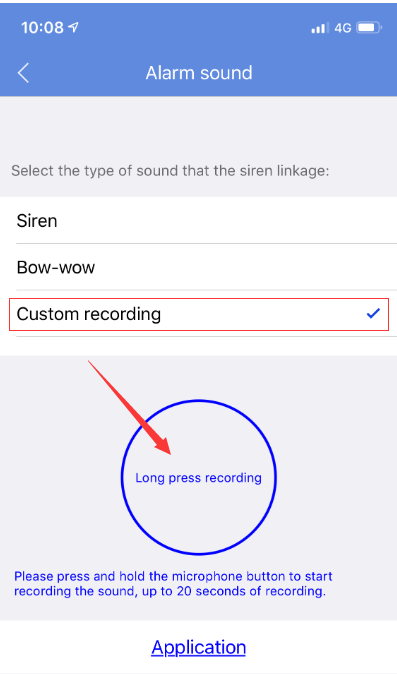
Record a custom sound clip.click "Alarm sound setting",Turn on Siren linkage,and choose sound type:"Custom recording"
Then Press and hold the audio recording button to start recording. In the face of the phone microphone to start talking, the APP will automatically record audio,Max support 20 seconds of recording
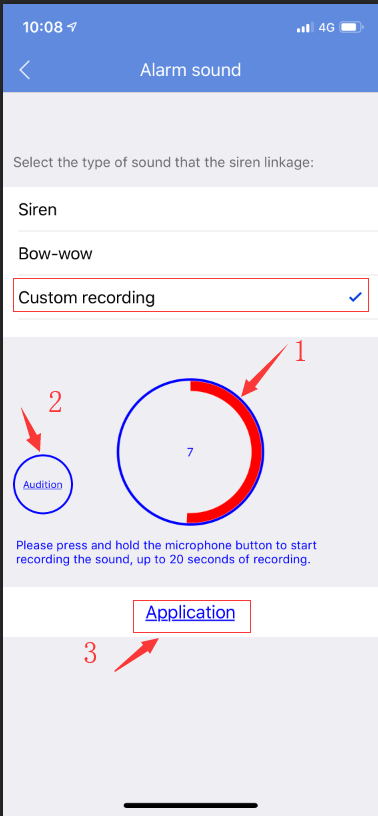
After the recording is complete, click the "auditing" button to start testing the recording file. If you think this recording is perfect, you can click "Application" to complete the audio recording. If you are not satisfied, you can re-record.
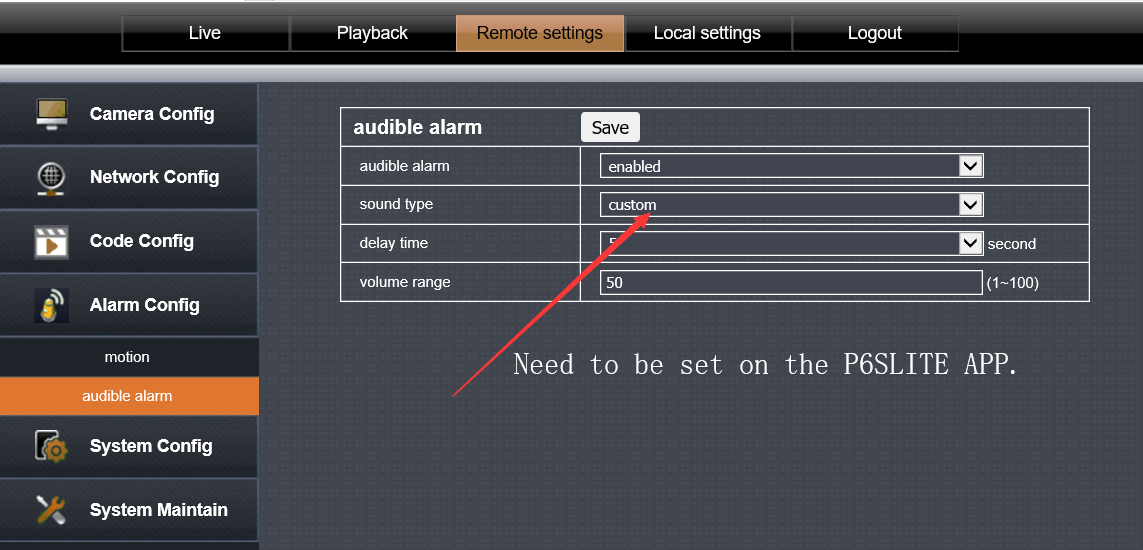
If an alarm event occurs on the camera, the camera's speaker will play your recorded sound.
-
Download:
-
-
Why can't I receive push messages on the app
-
Software Name:
Why can't I receive push messages on the app
-
Software Size:
-
Software Description:
Why can't I receive push messages on the app
Before using the APP to push messages, make sure you are logged in with a registered account, because all messages are pushed based on our push server, so you need to log in with the registered account to use the server's message push.
Please do not log in to the app using LOCAL login mode.
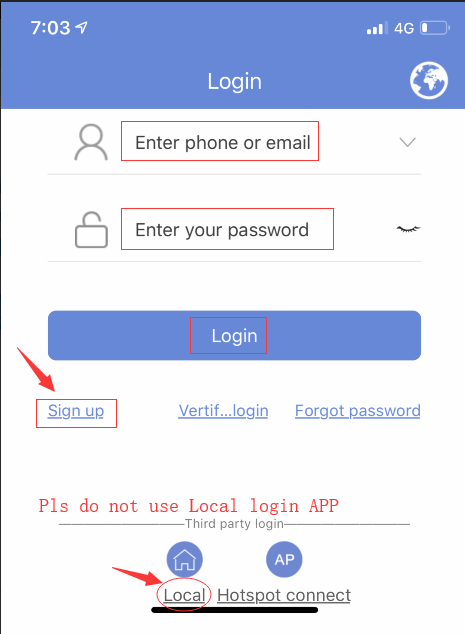
When installing the mobile app, the app will get some permission requirements for you. If you don't agree to the app to get these permissions, your phone will not receive push messages. You need to open the permission again.
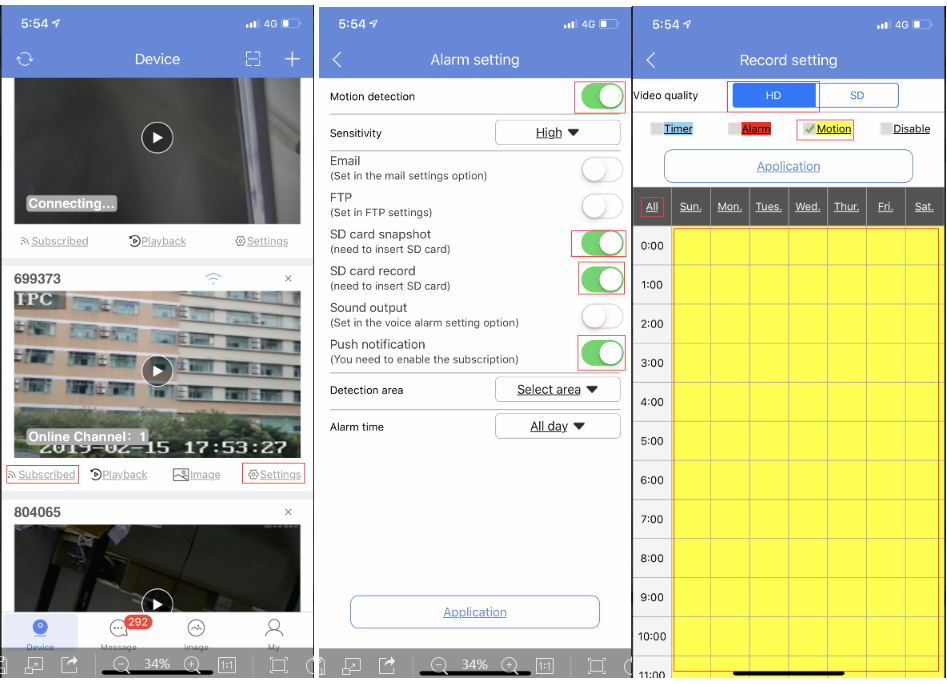
First you need to subscribe to this service on the main app interface.
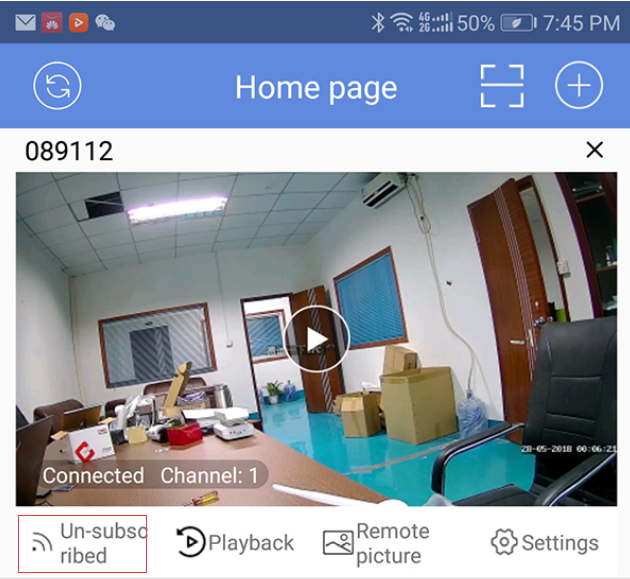
Turn on Subscribed ,After the subscription is successful, you need to do some setup:
1,For Android mobile phone
Please Turn on your mobile phone, enter the setup options, find the "Apps ¬ifications">"Notifications management"
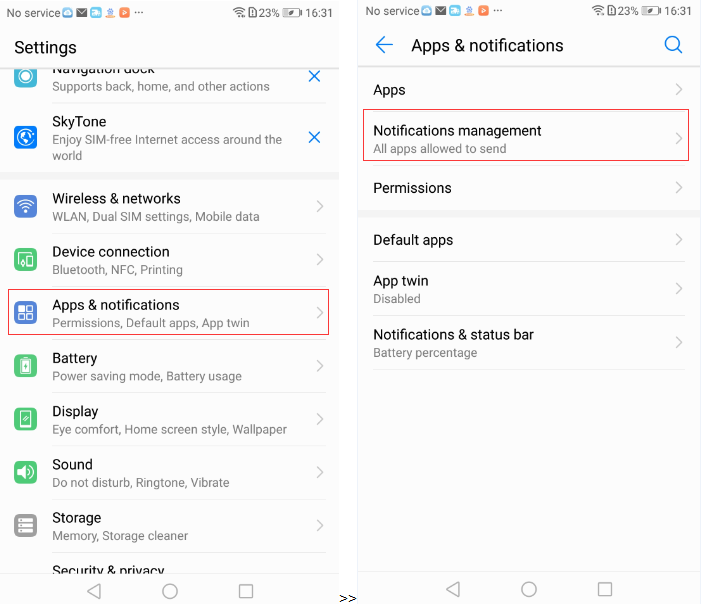
find out "P6SLite" and Enter the next level menu to set the permissions of P6SLite ,and Turn on these permissions as shown below, then return to the P6SLITE test push message
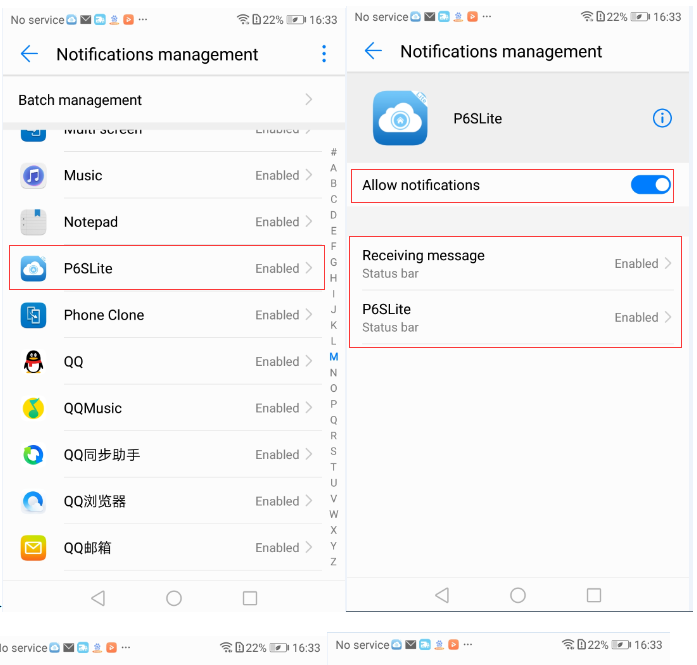
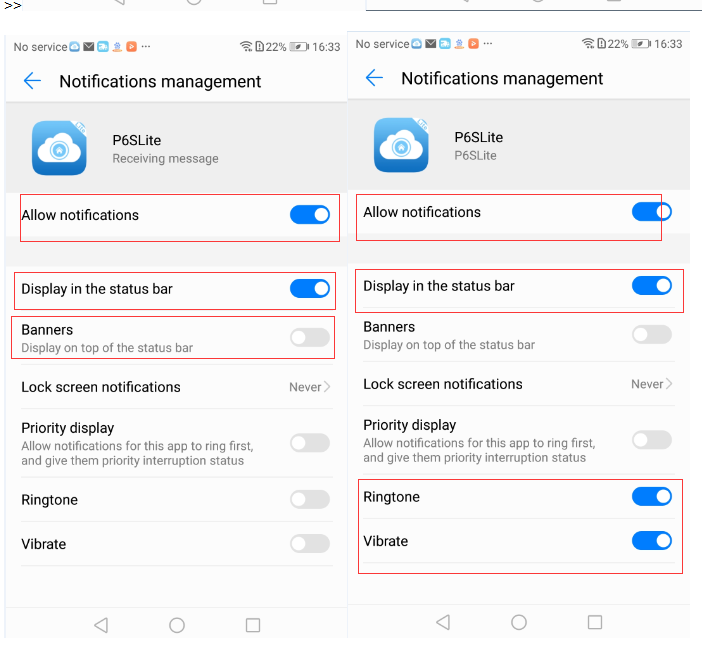
2,For Iphone:
1, Please Turn on your mobile phone, enter the setup options, find the "Notifications">"P6SLite" and Turn on these permissions as shown below, then return to the P6SLITE test push
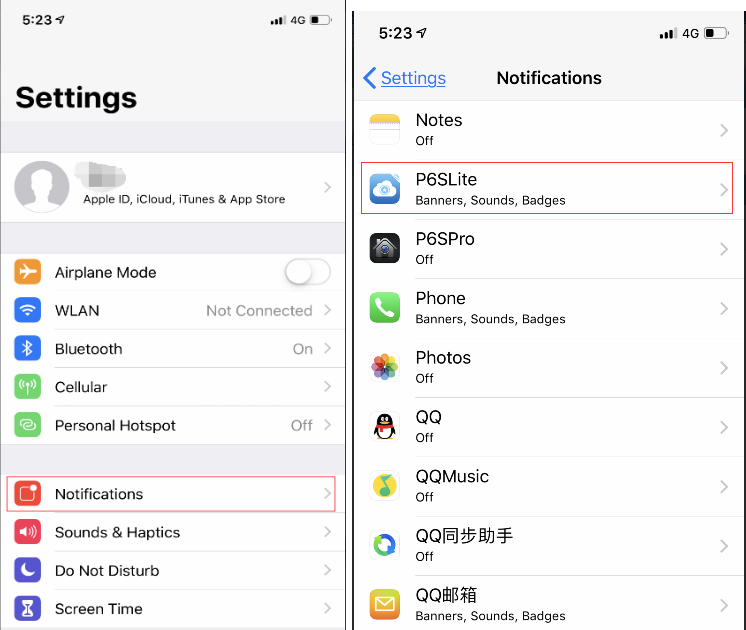
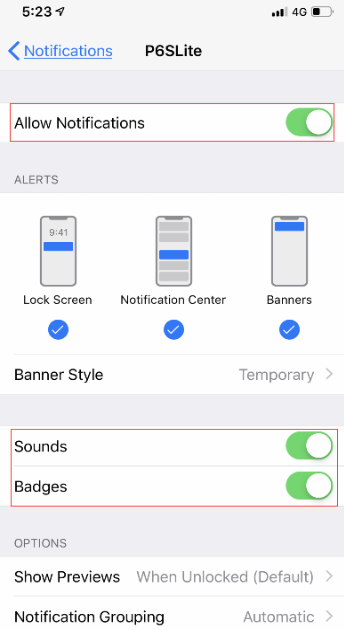
3,Set on P6SLite:
Run P6SLite to find your device, first enter the setup options to set the push function. Then click the "Subscribe "button on the server to subscribe to the push feature. The camera will turn on message push if you subscribe to the push function.
-
Download:
-
-
Set the humanoid recognition alarm function
-
Software Name:
Set the humanoid recognition alarm function
-
Software Size:
-
Software Description:
Set the humanoid recognition alarm function
Open a browser, use the camera's IP address, follow the prompts to download the plugin and install the plugin, then close the browser and reopen the browser. Enter the login interface:
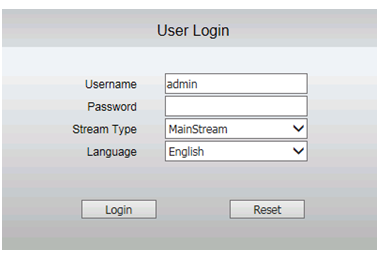
User:admin,No password. And click Login
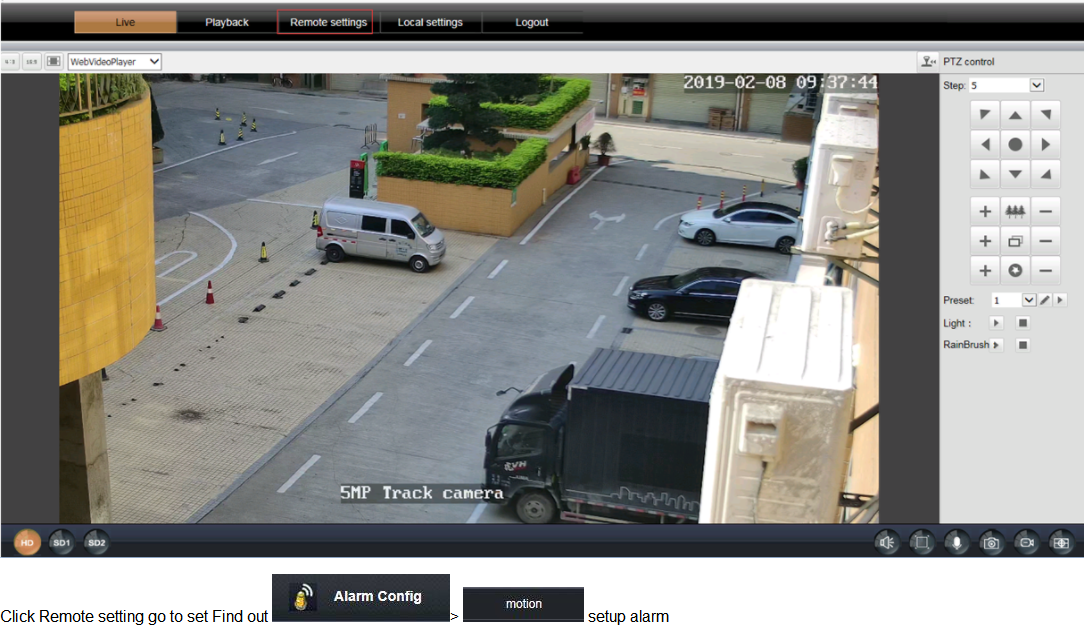
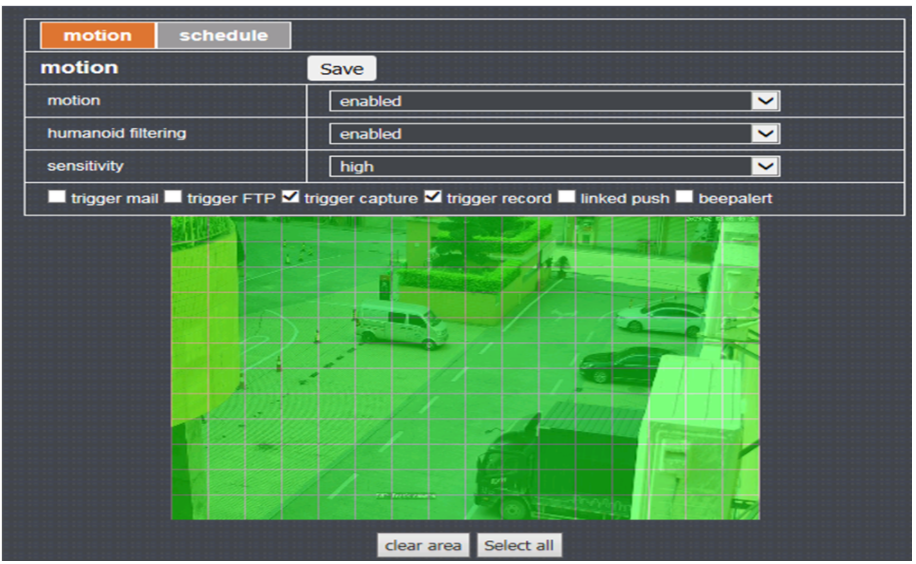
Motion:enabled; Humanoid filtering:enabled;sensitivity:High
And choose trigger cappure (The camera automatically takes pictures and stores them on the SD card when the human form is recognized.)
Trigger record: (The camera automatically motion recording and stores them on the SD card when the human form is recognized and Each video recorded file size is 7M.)
Linked push:push a message to Cell phone APP(Need to open the subscription function on the app)
Motion detection area selection, generally use the mode's all-select mode
If the humanoid filtering function is enabled, the motion detection alarm will be triggered when the motion detection triggers and the humanoid is recognized in the humanoid recognition area.
The humanoid recognition area of the camera is shown in the figure:
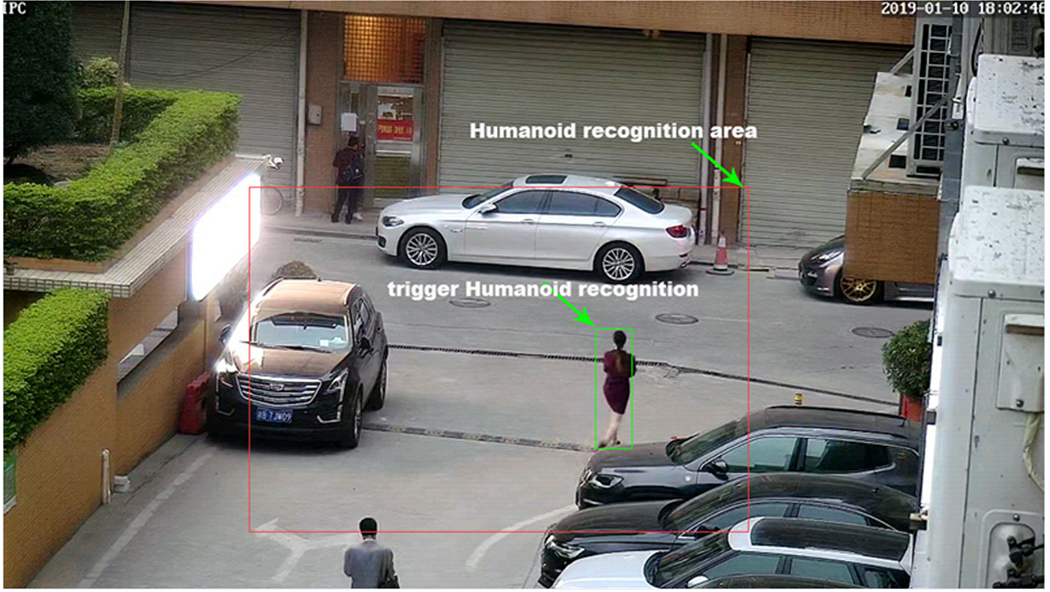
Conditions for humanoid recognition:
1, when the height of the person is greater than or equal to 1/5 of the height of the monitor screen
2. The person must exist in the area shown in the figure above.
3. The software will draw a humanoid frame on the human body when the camera detects the human form. If you want to see this box, you must use the main stream to watch.
 :When the alarm is triggered, if a speaker is connected to the camera. The camera will trigger an audible alarm.There are three types of audible alarm functions: warning, dog, custom.
Warning:The speaker will trigger warning alarm When Motion+ humanoid recognition alarm triggered
Dog: The speaker will trigger Dog barking When Motion+ humanoid recognition alarm triggered
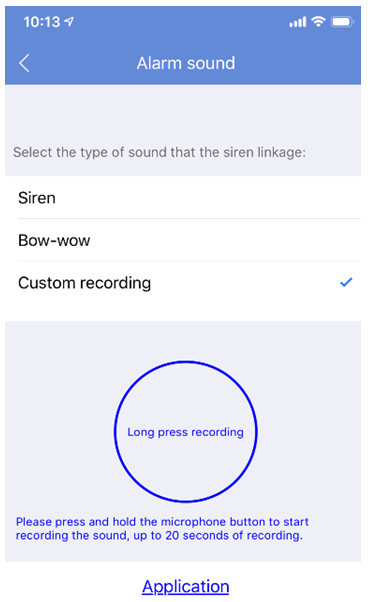
Custom: The speaker will trigger Custom voice alarm When Motion+ humanoid recognition alarm triggered(You need to record a warning tone on your mobile app.)
>>Open the app, go to Settings, then select Alarm sound.Select Custom recording,Then Press and hold the record button and speak into the phone with your mouth (the alarm tone you need
to record). Can record up to 20 seconds.
-
Download:
-